Running Pinegrow with L3M (Local Large Language Model) – my experience

Large language models are amazing. And terrible. Impressive. Complex. And daunting. Mostly, they are capricious. However, they are also improving at such a rate, bad experiences now can become productive ones tomorrow.

So I thought I’d document the most satisfying / least frustrating solution I’ve found to date. Next week, it will undoubtably be superseded.

For some context, I am doing this on the basic Mac M1 Max: 20 GPU cores and 32GB memory. It also has 10 CPU cores, but as it turns out, these are pretty much redundant for ML purposes (yes, I’m trying to avoid the marketing term “AI”).

I did buy a M4 Mac mini to run as a ML server, only to discover that while its 10 core GPU slowed things down compared to the Max, its 16GB of memory severely limited model choice to less capable options.

As for myself, until very recently I had near-zero interest in “AI” at all, and absolutely no experience with any of the terminology.

In my exploratory phase of ML, I started with Ollama, then tried Swama, as I liked the sound of speed improvements from a platform written in Swift and utilising Apple’s new MLX technology.

The problem was both seemed too hard to put all the pieces together. Eventually (and recently) I’ve gone to LM Studio. It was simple to instal (just an app) and included a chat interface, model repository and management, plus advanced mode for playing around with the small bits, as well as headless server.

I think that’s enough of the background. Now for the process of getting it up and running…

1 Like

Step 1: Download LM Studio disk image and copy the app to your Applications folder.

Step 2: Run the app. It will have a friendly Get started button, which proceeds in downloading your first model. It does take a while (you can skip this if you like).

Step 3: You get presented with a couple of settings about to whether to start the server automatically, and to show advanced options. Choose whichever appeals.

Step 4: If you downloaded the intro model, you can start chatting with it straight away. That’s not what we’re here for though.

1 Like

Step 5: In the left sidebar the fourth icon is the model browser. You can search for specific models, or look at the list of “Staff picks”.

The great thing about this app is it detects the hardware it’s running on, and picks the best version of a model for the hardware.

I tested about a dozen promising sounding models with Pinegrow, pacing them against some of the interactive tutorials. The three which I found to be most successful were:

  • Qwen3-Coder-30B-A3B-Instruct-MLX-4bit
  • Qwen3-VL-30B-A3B-Instruct-MLX-4bit
  • Devstral-Small-2-24B-Instruct-2512-4bit

Devstral is my favourite overall. It interacts well, asking questions where needed for more input.

Qwen VL is a vision model.

Another useful model is gpt-oss-20b-MXFP4-Q8. It doesn’t perform quite as well as the others, but it is quite chatty which can be informative for seeing what it’s “thinking”.

[This post has been removed as it duplicated further down. It also means the post following this one should go after step 8].

Apology for the confusion. I’ve never understood technology. :man_facepalming:

1 Like

Things to note:

  • LLMs generate things based on probability. This also means unpredictability. Sometimes a model would perfectly complete one of the interactive tasks I tried. Another time, it did absolutely nothing. If you have problems, starting a new task can help.
  • Models are large. They consume disk space. They occupy memory. With 32GB of memory on my machine, only a single (decent) model can fit at once. There is a setting in LM Studio to use JIT loading of models. You may need to eject a model if it doesn’t happen automatically when switching model choice in Pinegrow.
  • I’ve found MLX models at 4-bit quantisation to be a good balance. GGUF models had more issues. A rule of thumb I’ve found (could be wrong) is the # of GB of memory can handle a similar # of billions of model parameters. Quantisation helps with this.
  • At the moment, LLMs aren’t as good as a web designer. Still, for the most part they exceed my abilities. In six months, they will probably be better than the professionals. Keep checking for new models.

I also found that the attach image button in Mr Pinecone refuses to function. It tells me that the model doesn’t accept image input, even though it [the model] has no issues when used elsewhere.

Some models have a lot of other functionality, which Pinegrow possibly can’t utilise due to the model path being set specifically to the chat endpoint, not the root path.

If anyone gets stuck (instructions are easier to write than to follow) let me know and I’ll update the bits I’ve missed.

Switching to Pinegrow (assuming v9, running on the same machine as the LLM)…

Step 6: If you have a project open, go to the “AI” tab. Click the settings icon (hammer & spanner) in bottom right corner of the panel.

Step 7: In the settings window which appears, choose a free custom setting. It will present another dialogue box of options. I’ve attached a screenshot of mine.

Important things to note:

  1. The API key is irrelevant. You can set a key requirement in LM Studio (if you’re offering the service over a network) but it isn’t necessary. However, Pinegrow won’t continue with a blank key so if you have a spare cat available, let it walk over the keyboard if you like.
  2. The API endpoint is the tricky part. It should be http://127.0.0.1:1234/v1/chat/completions. LM Studio serves on port 1234 by default, but you can change that in the app. It would be nice if Pinegrow only required the endpoint to be http://127.0.0.1:1234, (i.e. the service address) as there are several other paths available for different features.
  3. If you go into LM Studio, the third icon on the left shows the downloaded models. Clicking on the ellipsis next to each model lets you copy the identifier (as shown in the screenshot). For each model, copy the identifier and past it in Pinegrow model list. It would also be nice if Pinegrow could populate this list automatically – after all, http://127.0.0.1:1234/v1/models returns the list.

Click Save when that’s done

Step 8: Assign desired models to Quick / Smart / Search. My understanding is Quick vs Smart are just labels for quick access to models of choice, and have no other effect. The idea will be that with the goal of saving tokens (i.e. money) the quick model is good for the simple jobs while smart was the more costly fallback. As tokens are no longer scarce items, feel free to organise as you wish.

Save those settings when satisfied.

2 Likes

interesting using the LM Studio.
I also tried this.

did you check out my voluminous post about this, which I replied your previous post?

I did it when they said it was practicably feasible to run on localhost with PG.
:slight_smile:

also on m1 Mac, but pro not max

Thanks for this @schpengle. What did save me a lot of work was activating the “AI” summary of that thread. I’d actually read – and posted to it – previously, but it has become too overwhelming for me. Probably outdated too, given it started a year ago.

As for the video, I found it daunting to watch.

That’s why I wanted to create a fresh (and short) posting which (hopefully) people with little knowledge and an aversion to installing environments (like me) etc could get up and running.

I think we’re only a year or two away from web design being basically a process of dictating wishes.

and the perfect wife…… job, and family life.. yeah well……

maybe get me a few more dozen Neural network cores first….. so close,
we’re so very very close…..

:wink:

I think the reason I binned the LM STudio way was something do do with
Them ALL …downloading their own Mega GB versions of the same LLM to run locally.
Nuts…. and for some reason, which I recall not, right now, Ollama won out somehow over lmstudio due to this , and me being able to use the llm elsewhere too.

And ive just updated my lmstudio app, though ive never actuallly added any models to it.
It seemed bonkers to me when exploring the topic, that you couldn’t download LLMs and then share those many GB in size LLMs between various accessing apps, such as olllama , lm studio etc.

SO I settled on the other one.

Also, just re reading through you posting again, did you forget to add the screenshot you allude to in this post?

I think you meant to add 2 screenshots there.
ok thanks for reminding me about the whole AI topic in PG, id kind of nailed it at the time, forgot about it all and moved on :slight_smile:
cheers.

ttfn

I found that too. When I was trying out Ollama & Swama, while they offered the option to choose the location, they seemed to have different folder structure making a shared folder a problem.

I guess the theory was that if one service can offer access to the models through an API, there was no reason to have several interfaces. :man_shrugging:

Putting them on an external USB drive wasn’t great as it took several minutes to load the model into memory. A Thunderbolt / USB-C drive might have solved that though.

I’ve now moved them closer to where they’re referenced. It does make it a bit easier to follow.

[Deleted this bit as it referred to an OP’s post duplication ,since removed]

in other news I went off and checked out that Swami app you referenced,
Its apparently quicker as utilises MLX which…..is yet again a new technology to me, along with AI but, it enables super fast running of things compared to Ollama, which doesnt use it, like twice the speed, BUT…..

It requires not only Apple Silicon to run on but
OS

14.x onwards.

im on 12, Monterey…. so!
That saves my another curious headache.
But thanks for reminding me to get the AI thing going in the latest PG again.
ok,
ttfn

That’s weird. I edited my post to put the screenshots in the right place, and it duplicated it instead. I’ll do some tidying up.

I’m a bit confused about that. All Apple silicon models should be able to run the current OS (v26) so the OS shouldn’t be holding you back.

from

See>?
I didnt make it up :slight_smile:

……..and yet this says
13.x OS, Ventura (the one after Monterey..so close!)

So, me being me aaaand so I tried it all anyway.j

end result.
no result…… doesn’t work.

so we updated my installed LM studio, which Id never installed any LLMs too.
And then searched for, found and installed DeepSeek R1 coder Qwen type model thingy.

so, update looked good,
Found model,
selected the MLX version of the model…
downloaded that..

aaand.

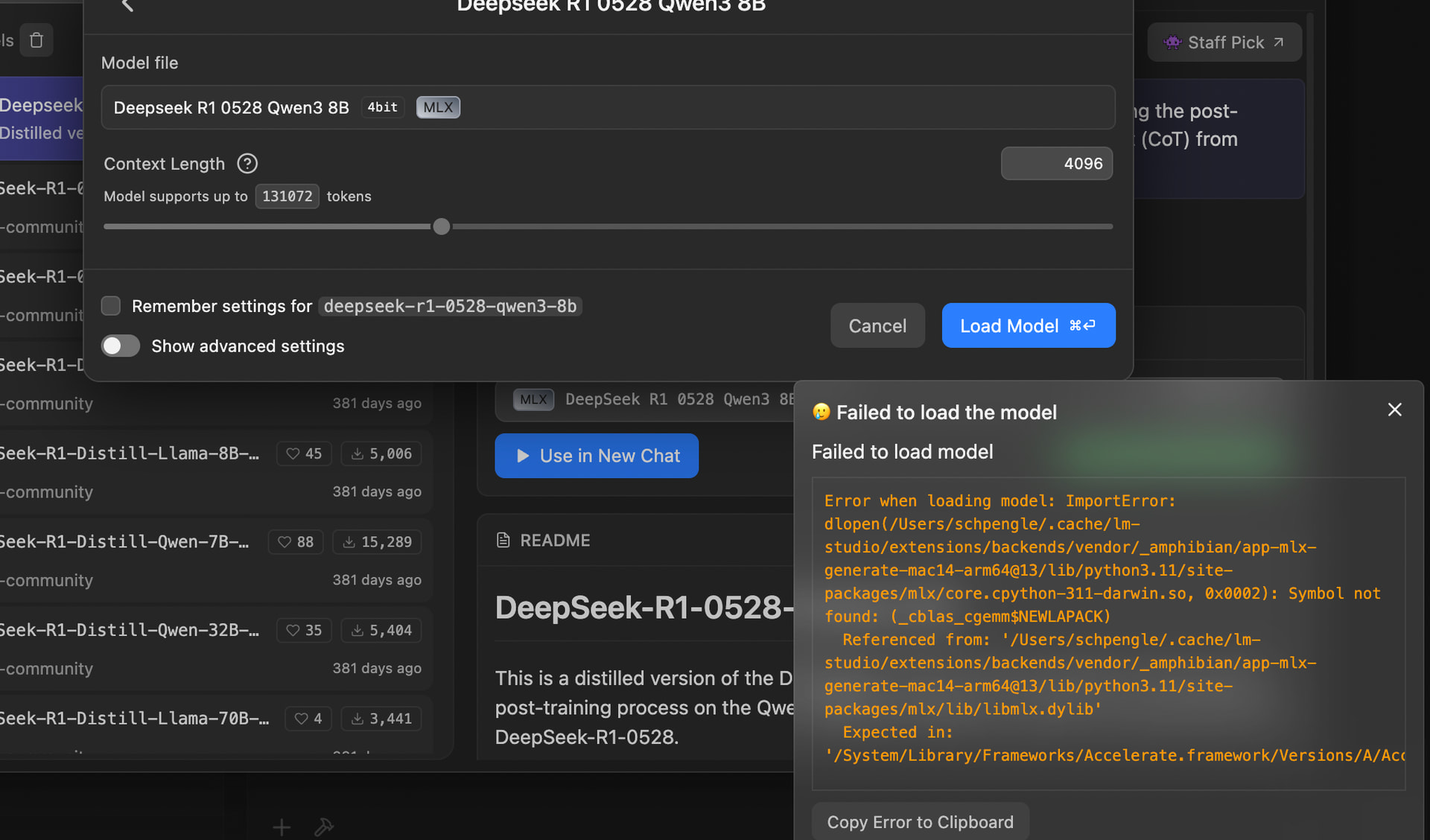
Oh no!
what a huge (not) suprise.. what could possibly be wrong?….

*Two secundz Latuuuuur* …. and very quick google of the error message..


and also

oh cr(*)p…anyway…
So then just downloaded the GGUF version of the LLM, NOT the MLX version aaaand…

different error message, but yep, cant even run the normal GGUF DeepSeek Coder LLM.

so just deleted both downloaded LLMs, about to un install the updated LMStudio version and reinstall the older one (always keep your installer files!)
as to make the app avialable,
Available for update and yet
UNABLE to actually work, ie, run the LLM seems pretty retarded.

back to OLLAMA.
no MLX capability (they keep mentioning it….forever….in the docs/chats etc)
As

It’s very simple and written on the side of the tin is
*it just works
*
….erm, without MLX tech though..

Anyway!!!

that sent me down a rabbit hole.

in order to further pursue the MLX implementation of LLLMs,
I then came across

MSTY.AI

which apparently offers this and runs on my OS.

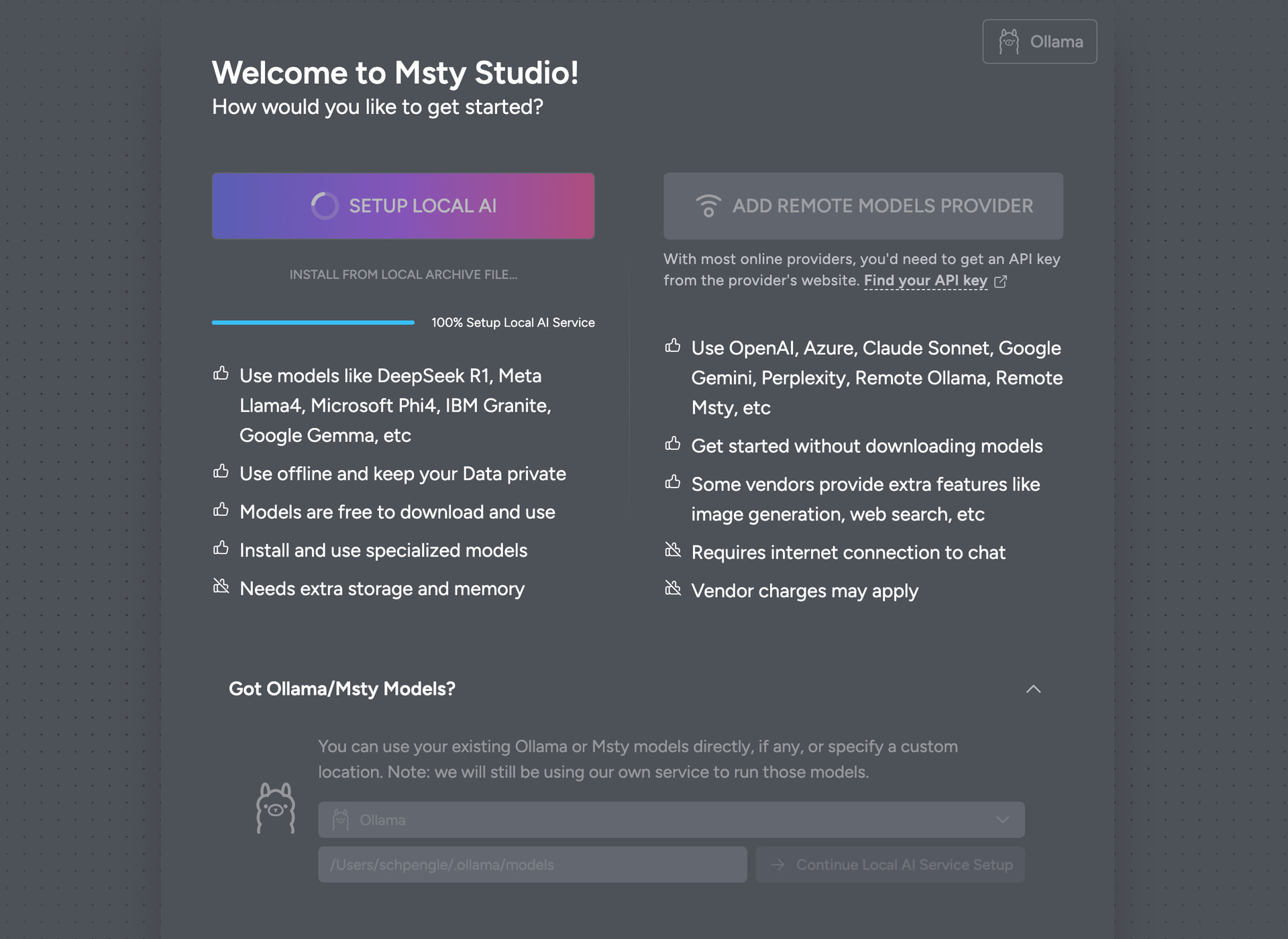
AND….. it offered the totally logical choice of utilising the ALREADY EXISiTING OLLAMA LLLMS!

Brilliant!
SO no more duplicating the massive LLLMs in order to run them via different service interfaces.

SO I fired it up, after it already discovered my OLLAMA LLLms and….

er…….
no!

nothing.
seemed to do nothing.
eh?

I did it again and again, but alas, no models showed up!
oh, ok
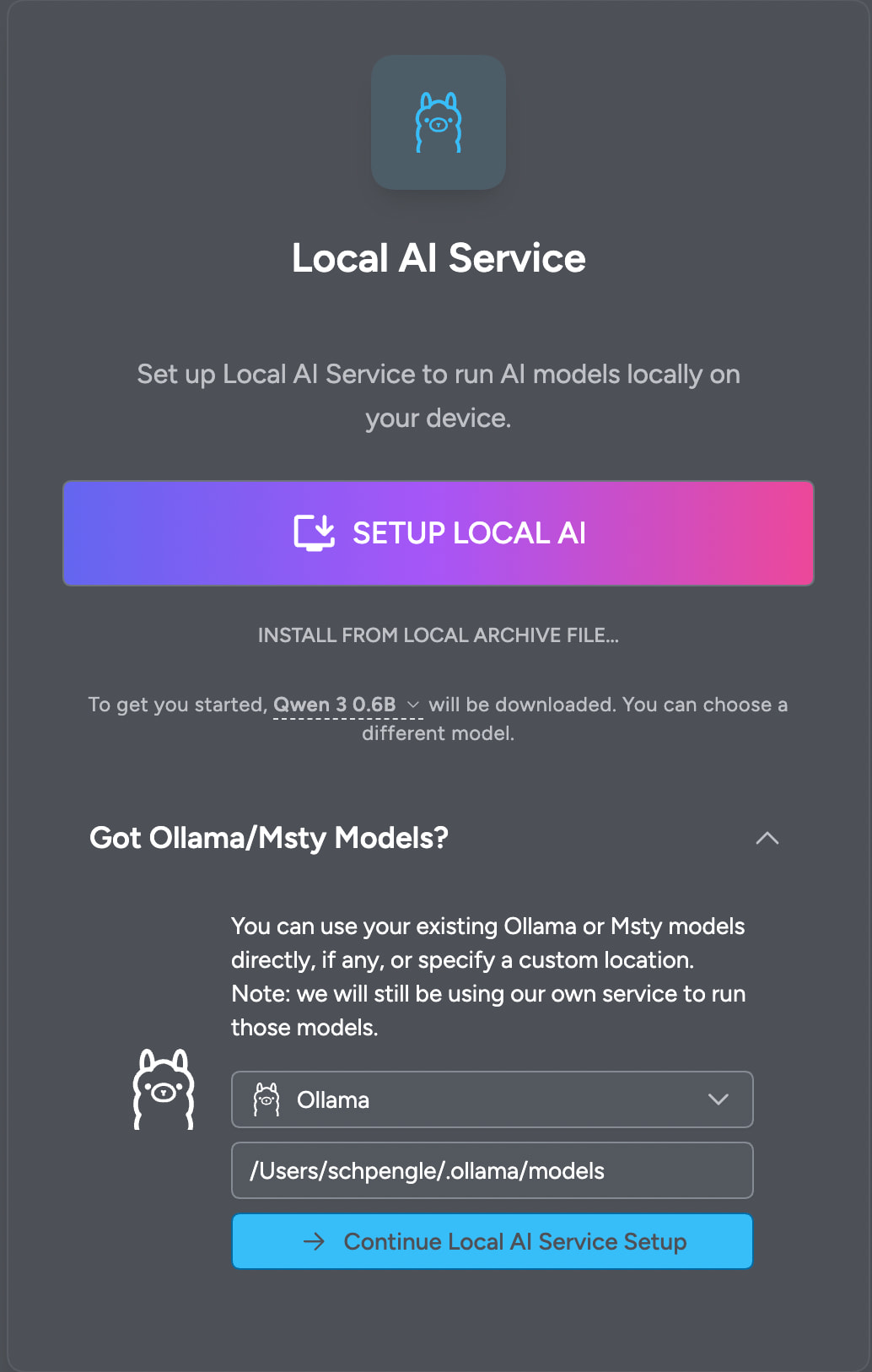
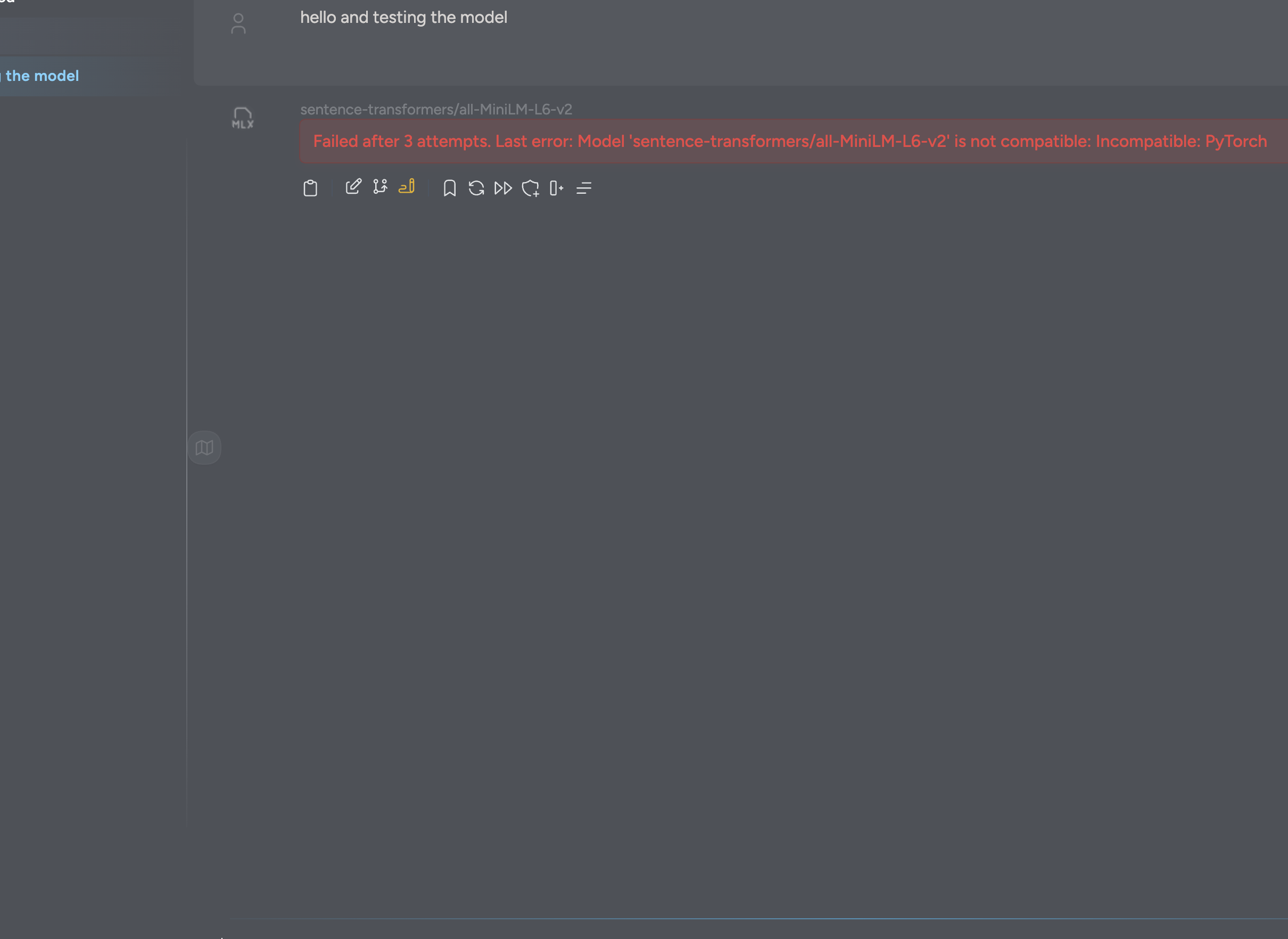
so then just fired up MSTY with its smaller downloaded, NON MLX model and…

I love the sound of breaking glass….
erm.

Ive done quite a bit of research of it now and
think, Ill give up on this. Looked at downloading older versions of MLX and Pytorch etc and decided life is too short.
Ollama works for me the little I use it, so , yeah.
until the next upgrade :smiley:

Ill let you carry on with your thread now and shut up, but, you might like to check out MSTY as well, that also runs MLX and allows you to share models with LMStudio.

so, goodnight from Radio Schpengle.
Click!

1 Like